

Skylight calendar is changing the way busy households manage their schedules—but is it truly the best digital wall calendar for families in 2026? Here’s what you actually need to know before you buy, with real feature comparisons and honest downsides most reviews skip.
Key Takeaways
- Skylight Calendar offers a distraction-free family scheduling hub and outpaces multipurpose devices like Echo Show for calendar visibility and organization.
- Ongoing subscription fees are real for both Skylight and Echo Show, but some advanced features are locked behind more expensive plans.
- There are overlooked gaps in setup ease, display specs, privacy, and accessibility—read before investing in any digital wall calendar solution.
- What Is a Skylight Calendar and Why Do Families Want One?
- How to Use a Skylight Calendar: Step-by-Step Setup and Best Practices
- Advanced Analysis & Common Pitfalls: Skylight Calendar vs. Echo Show
- Conclusion: Should You Get a Skylight Calendar?
- FAQ: Skylight Calendar & Digital Wall Calendars
What Is a Skylight Calendar and Why Do Families Want One?
The Skylight Calendar is a digital wall calendar designed to simplify family life by putting everyone’s schedules, chores, meals, and reminders on a bright touchscreen you see every day. Unlike regular tablets, TV displays, or even Alexa devices, it’s built to act as a household command center—free from entertainment distractions and complicated navigation.
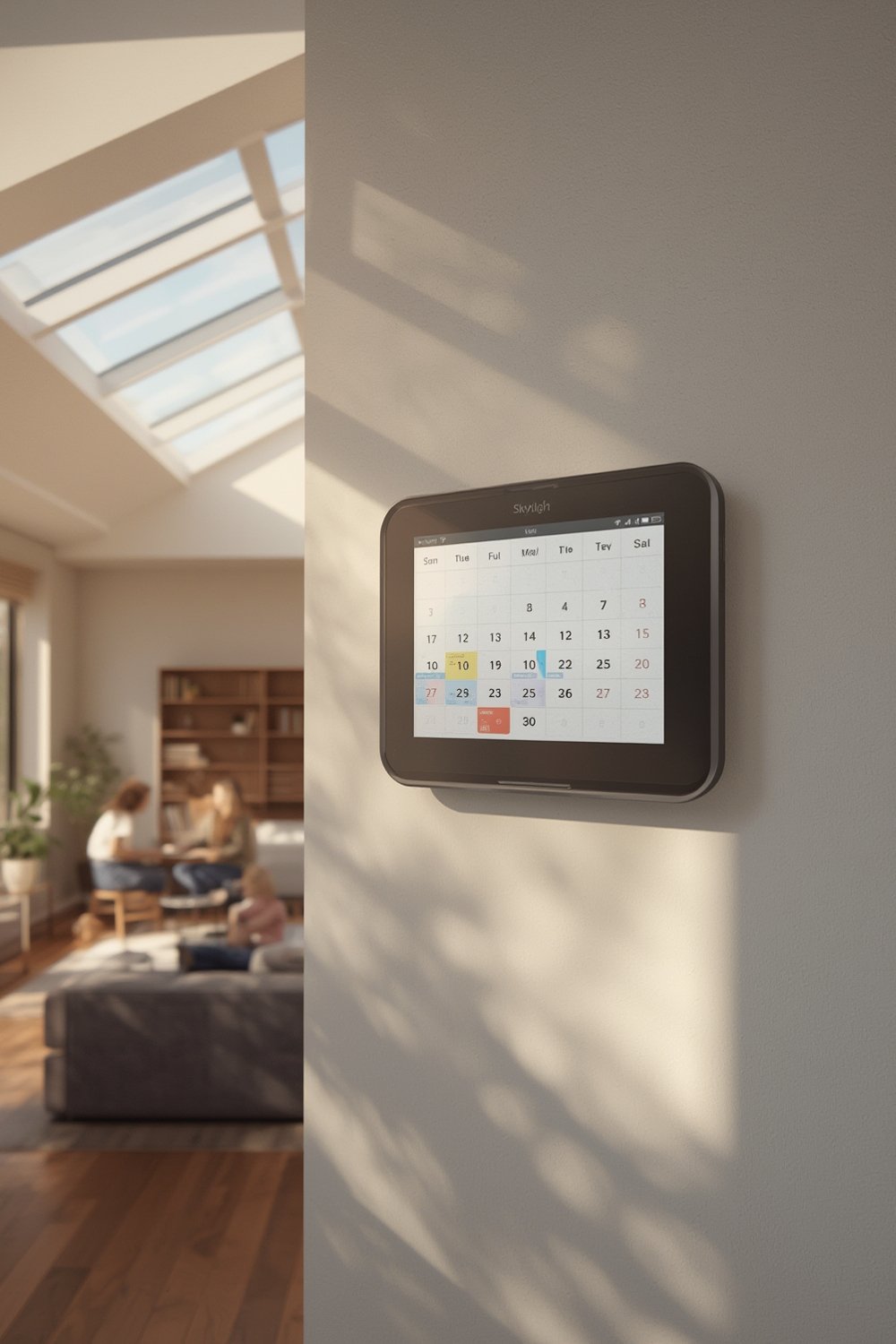
You connect your Google, Apple, Outlook, or Cozi calendars so events sync in real time. Each family member can have color-coded appointments, plus you can plan meals, keep a running Instacart grocery list, assign chores, and even use reward systems to motivate kids.
What do families and roommates love most? Everyone can see upcoming plans at a glance. No more “What’s for dinner?” or “Did you remember practice?” questions every evening. If you want your household running smoothly, a Skylight calendar becomes a central point of clarity and accountability. If you also want hands-free control for lighting, music, or TV, the voice-controlled smart home route may suit you better.
How to Use a Skylight Calendar: Step-by-Step Setup and Best Practices
Getting started with a Skylight Calendar is quick, but to get its full value, follow these actionable steps:
- Choose the right location. Pick a high-traffic area where every family member will see it daily—kitchen, hallway, or mudroom are popular. Make sure there’s a power outlet nearby.
- Unbox and mount (or stand) the device. Both the 15-inch and 27-inch Skylights include a sturdy stand. For wall-mounting, use the included hardware and follow the on-screen level guide.
- Connect to WiFi and power on. The setup wizard will guide you through network selection and syncing your account securely.
- Sync your calendars. Use the built-in interface (or companion mobile app) to connect Google, Outlook, Apple, and Cozi accounts for real-time updates. Assign each user a color for fast visual sorting.
- Set up key features:
- Enable chore charts and reward points (Plus Plan needed)
- Create shared lists for groceries, to-dos, and shopping
- Import recipes and set up meal planning tools
- Customize settings for day/week/month calendar views
- Communicate the new system to your family. Hold a quick household meeting to explain how to check the screen, update their own tasks, and use the lists. Kids respond well to emoji-based rewards and chores.
- Set up mobile and email notifications (optional). These can ping designated users for urgent changes, reducing missed events.
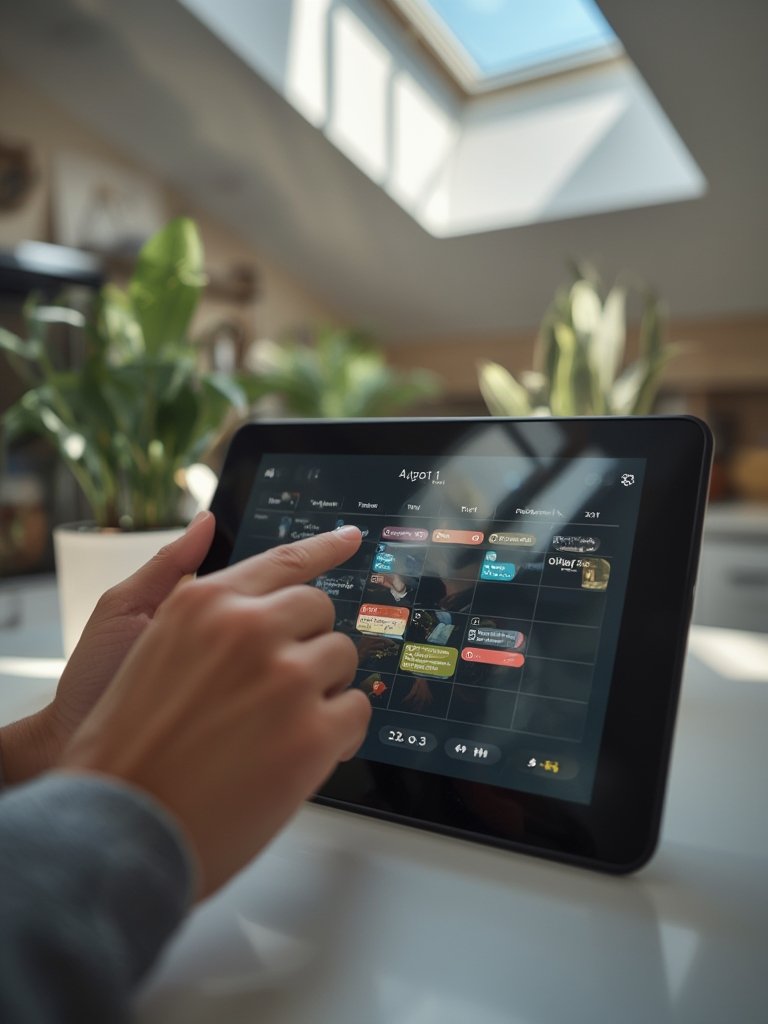
Daily best practices: Make checking the calendar part of your morning and dinner routines. Let kids add stickers or emojis when tasks are done, and update events in real time so everyone is always on the same page. Use the meal planner to cut down dinner indecision, and print the grocery list for fast weekend shopping.
If you want your organizational tools to blend into your overall home design, check out built-in shelves living room ideas that can frame your Skylight calendar attractively.
Advanced Analysis & Common Pitfalls: Skylight Calendar vs. Echo Show
Choosing a digital family calendar isn’t just about the price—it’s feature differences, ongoing costs, and practical realities over months and years. Here’s how Skylight and Echo Show actually compare, plus what most users get wrong.
| Feature | Skylight Calendar | Echo Show 15 |
|---|---|---|
| Primary Focus | Dedicated family calendar, no distractions [source] |
Multipurpose media device; calendar interface is secondary and harder to access |
| Calendar Syncing | Google, Apple, Outlook, Cozi supported | Available, but setup is less intuitive and more buried |
| Color-Coded Calendars | Yes, by user | Available but less emphasized |
| Chore & Rewards | Emoji-based chore charts and a points/stars system (Plus Plan) | Basic task lists, no gamified rewards |
| Grocery Lists & Meal Planning | Integrated with Instacart & recipe import features | Grocery lists possible, but no smart meal planning zone |
| Voice Control & Smart Home | Not a primary feature | Alexa-enabled voice commands and smart home control |
| Display & Usability | Optimized for calendar clarity—easy to see events at a glance | Calendar is “buried deep,” requiring several taps/swipes to view |
| Upfront Price (2025) | $279.99–$629.99 (15″ or 27″) Includes countertop stand |
$299.99 for 15″ version Wall mount by default, stand costs extra |
| Annual Subscription (full features) | $39–$299/year (advanced features and rewards require Plus Plan) | $240/year for full Alexa subscription (to unlock expected features) |
| Privacy & Security | Local voice processing, direct video routing; uses AWS practices [source] |
No detailed comparison available, and privacy practices are not transparent |
Biggest user frustrations and limitations (see review video):
- Hidden subscription costs: Expect ongoing annual payments for full feature access—$39 or even $299/year with Skylight’s Plus Plan, and $240/year with Echo Show/Alexa. This is often a surprise for new users.
- Interface depth: Some families give up on Echo Show simply because the calendar is buried deep in its menu system, reducing day-to-day usefulness. Skylight’s default display wins for pure organization.
- Support and focus: Echo Show’s jack-of-all-trades design makes personalized help and direct support for calendar users harder to find.
There are also major neglected gaps in reviews:
- No concrete data on actual user satisfaction (no published NPS or refund rates)
- Setup complexity is rarely discussed; syncing multiple external calendars can be confusing for first-timers
- No in-depth coverage of display specs—brightness, color, glare, or how far away icons can be read
- Offline mode? No reviewer mentions if your calendar still works during outages (most require WiFi goes out at all times)
- Accessibility for vision or mobility-impaired users is not addressed
- Long-term software updates and device longevity are unclear. Will your $300 device work seamlessly in 3 years?
Before deciding, consider whether you prefer a focused scheduling command center or an all-in-one device that’s less calendar-centric. If you value a premium, distraction-free display, Skylight is a top contender. If you want voice-activated control for all your devices, smart home security and automation platforms like Echo Show might serve you better—just be ready for a less “front-and-center” planning experience.

Conclusion: Should You Get a Skylight Calendar?
The bottom line: a Skylight calendar delivers a distraction-free, visually clear solution as your family’s household command center. While the ongoing costs for premium features can add up over years, families who rely on easy, always-visible coordination often find it’s worth the investment. Echo Show can work for those who want broader smart home capabilities, but you sacrifice pure organizational visibility.
Consistent routines, visual management, and easy shared lists are what make Skylight excel—just make sure to consider subscription fees, setup steps, and long-term support before you commit. Looking for even more powerful home upgrades? Explore affordable DIY renovation tips, or extend your organization with a small apartment aesthetic approach that complements modern digital tools like the Skylight calendar.
Ready to rethink your family’s schedule? Start with a dedicated digital wall calendar that truly matches your needs and space.
FAQ: Skylight Calendar & Digital Wall Calendars
Does the Skylight Calendar work without a subscription?
Yes, you get basic calendar syncing and display without a subscription. However, some features like chore charts, emoji rewards, and meal planning require the Plus Plan at $39/year or $299/year for all advanced features.
Can I use Skylight Calendar with Google and Apple calendars at the same time?
Yes, Skylight lets you sync multiple Google, Apple, Outlook, and Cozi accounts at once. Events update in real time, and you can color-code different users for quick sorting.
Is setup difficult or can non-techy users handle it?
Most people find initial setup straightforward, but integrating several family members’ calendars can take time. You’ll need to connect each external account individually and assign colors. If you’re unsure, invite the family to help and test syncing before wall-mounting.
What happens if my WiFi goes out?
The Skylight requires an active internet connection for live updating and new event syncing. If WiFi is down, you may only see the last synced information until it reconnects. There’s no documented offline mode for adding or editing events.
Is there a good alternative if I want more smart home features?
If you want a central hub for voice control, streaming, and security as well as a calendar, consider the Echo Show 15. Just note its calendar features are less visible and harder to navigate compared to dedicated solutions like Skylight.